
Gmail for Omarchy and macOS
Gmail, one account at a time.
Check Gmail from your Linux Omarchy bar, read and reply in the experimental Linux/Mac TUI, or use the structured agent CLI. Up to three accounts keep separate mail, permissions and Chrome profiles.
≈31 MB RAM Linux three-account bar baseline
Cached mail is ready while Gmail updates in the background.
Bar v0.2.2 · 2026-10-05. Inspired by the author’s ~2 GB Gmail tab.
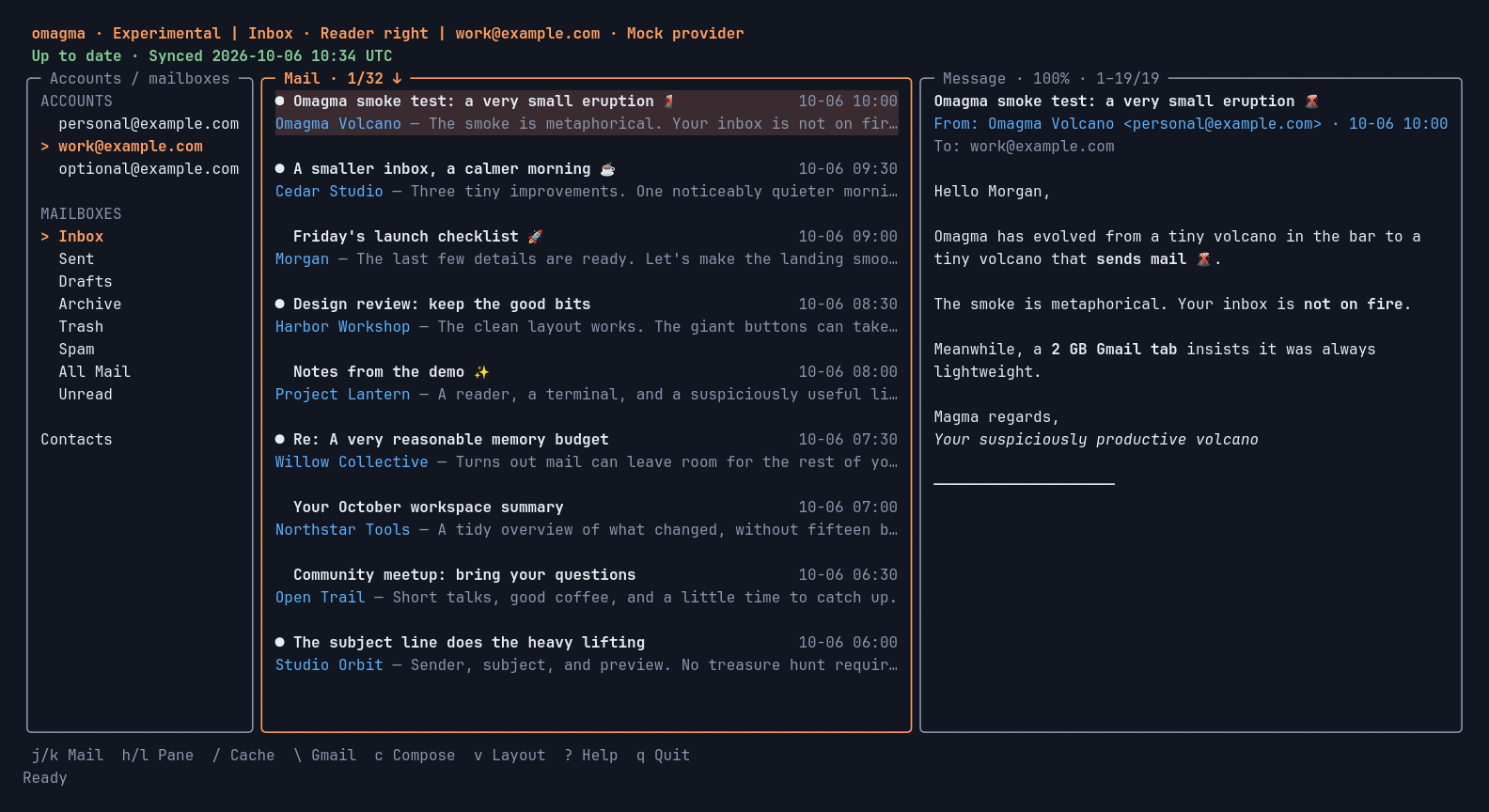
omagma tui with fictional mail — a real terminal capture.
Full-size capture
Three interfaces
Read-only by default. Write access only where you grant it.
The bar, terminal client and agent CLI share the same one to three accounts and keep them apart: separate lists, unread counts, credentials and Chrome profiles, with no combined Inbox. Terminal writes need a grant you approve per account. Alongside the Linux bar, use a different Google OAuth registration so its read-only grant stays intact.
-
Omarchy bar
Read-onlyClick the magma icon to see each account’s unread count and up to 30 recent Inbox messages with sender, subject, time and snippet. Activating a message or Open inbox opens Gmail in that account’s own Chrome profile.
Refresh on demand, or turn on five-minute background refresh. The bar never sends mail, changes labels or read status, or saves mail to disk.
- Permission
gmail.readonly- Google OAuth
- One registration
- Mail kept
- In memory only
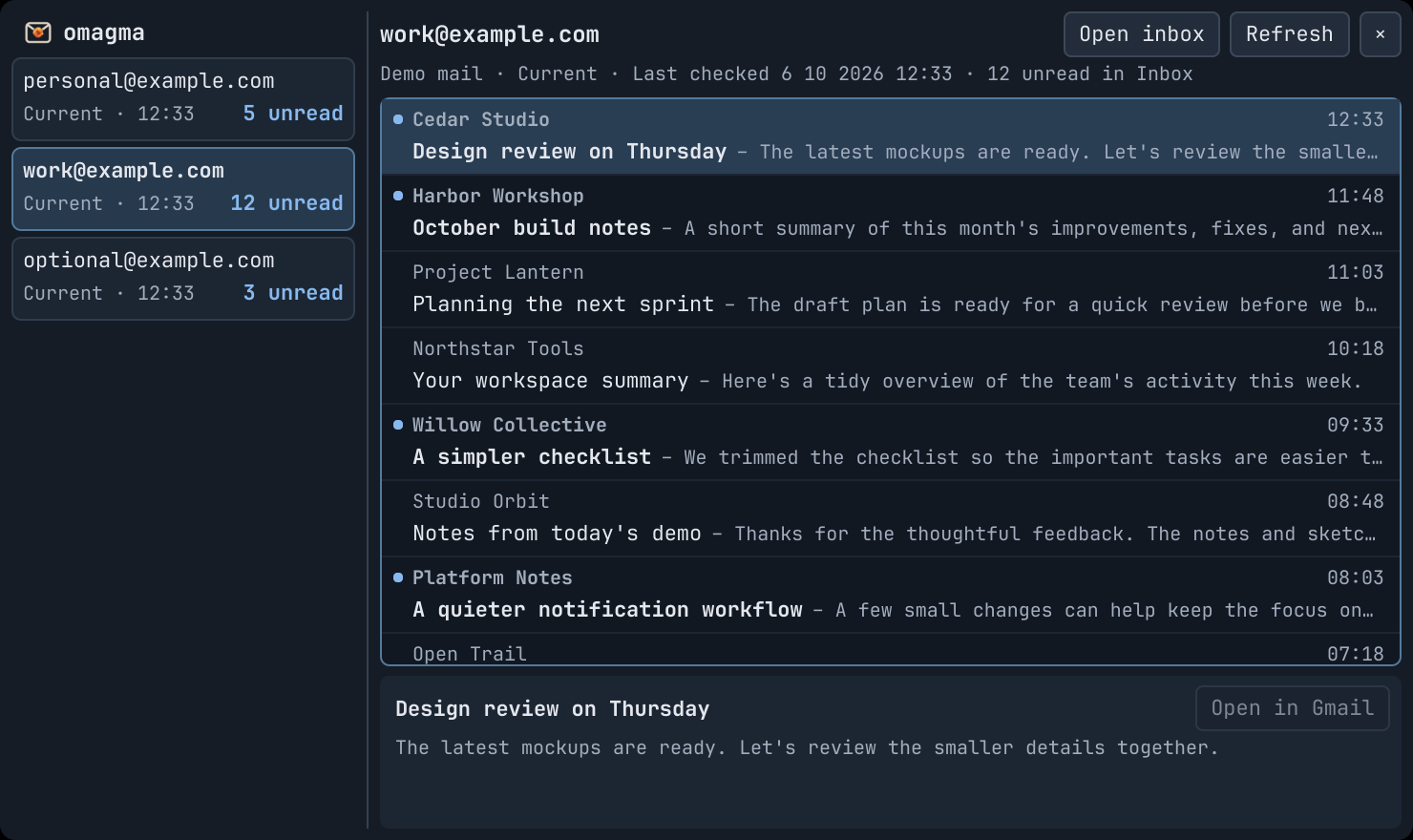
Read-only The bar dropdown with fictional accounts. -
Terminal client · Linux and Mac
Experimentalomagma tuiFull messages and threads, with the reader beside or below the list, Vim keys, mouse navigation and a native text view of HTML-only mail. Scripts and remote images never load.
Search the cache with / or Gmail with \. Write drafts, replies and reply-all with attachments; create and edit contacts; archive, Trash, star and assign labels; create, rename and delete custom labels; answer invitations with an RSVP email.
$EDITORtakes over the terminal to compose, then hands it back.Compose Markdown source with a rendered outgoing preview, original reply context and a plain-text alternative. Ctrl+T changes format, normal compose p changes preview, and send review requires explicit y.
- To read
- A
gmail.readonlygrant - Full access
gmail.modify+contacts; a different registration if you also use the bar- Mail kept
- Private plaintext disk cache
-
Agent CLI
Experimentalomagma cliOne-shot commands and a JSONL client on the same account-scoped executor as the TUI. Every request names its account, pages return up to 100 messages with explicit cursors, and cached and Gmail search stay distinct.
Sends and RSVPs record durable operation receipts. An unknown outcome is never retried automatically. Use
--format markdown|plainand localdraft previewfor rendered HTML and plain alternatives.- Permission
- The TUI’s terminal grant
- Output
- JSON and JSONL on stdout
- Agent writes
- Only with your task authorization
Why it exists
Omagma started because one Gmail tab was using roughly 2 GB of RAM on the author’s desktop.
An individual observation, not a universal Gmail requirement.
Approximately 31 MB
The read-only bar with three connected accounts: backend plus its attributed share of the bar UI.
Chrome and unrelated shell widgets are excluded. Both figures are approximate observations, not a controlled benchmark, and the 31 MB estimate covers the bar only — not the terminal client or later versions. Memory measurements
Terminal cache
Cached mail first. Gmail catches up.
The terminal client opens with the mail it already has and keeps it readable while Gmail refreshes in the background; a refresh requests only the changes since its last update. By default each account keeps its newest 2,000 messages within 256 MiB and evicts the oldest tail. An optional Linux five-minute timer keeps the cache ready even while the TUI is closed. Mac installation does not add a background service.
Placeholder rows turn into messages as metadata and bodies arrive. A metadata 1/32 or bodies 1/32 counter reports the batch in progress, and scrolling past either end of the 32-row list moves continuously through adjacent cached mail.
Cached mail is private plaintext with owner-only permissions, kept apart from the bar’s memory-only snapshot.

Get started
Let your coding agent walk you through setup.
Give your coding agent this website or the GitHub URL and the prompt below. The agent fetches the instructions and prepares its own local files. It installs with Homebrew on Mac or downloads and verifies the matching Linux bundle, prepares private configuration, then guides you through Google Cloud Console one small step at a time, waiting for your feedback. You make the Google clicks and approve access in your own browser.
Setup promptRead-only bar
Read AGENTS.md at https://github.com/technologylab-ai/omagma/blob/main/AGENTS.md and fetch its linked setup workflow and account guide yourself. Follow skills/omagma-setup/SKILL.md and docs/SETUP.md. Download and verify the latest complete Omagma bundle for my Linux architecture, then install its Omarchy bar plugin and Omagma launcher entry, and offer to make Super+Shift+E open Omagma instead of HEY. Help me map my Gmail accounts to their existing Chrome profiles. Walk me through Google Console and OAuth one small step at a time, waiting for my feedback before the next Google step. Reuse my existing project and configuration where available, keep downloaded credentials private, and open consent in the correct profile for each account. Verify mail access and profile links, then give me launch and reconnect instructions.Add your account addresses, each account’s Chrome profile directory, and whether you want five-minute background refresh. If you already downloaded the Google registration JSON, give its local path — never paste its contents or any tokens. For Mac or terminal-only setup, and for sending or mailbox changes, use the full-access prompt.
What the Google part involves
- Your own Google project. Create a Google Cloud project, enable the Gmail API and configure the consent screen. Register Omagma with Google and keep its downloaded registration files private.
- One OAuth registration for the bar. A Google OAuth registration with
gmail.readonlycovers the bar and read-only terminal browsing. - Terminal-only, or alongside the bar. Full TUI/CLI access uses
gmail.modifyandcontacts(People API). A fresh terminal-only installation needs one registration; alongside the bar, use a different registration in the same project and preserve its read-only grant. - Consent per account, in its own profile. Each account maps to an existing Chrome profile. Consent opens there, and Omagma checks the returned address before storing the token in Secret Service on Linux or your user Keychain on Mac.
While a Google app is in Testing, these grants expire after seven days; reconnecting is one command per account.
Prefer to set it up by hand?
- Choose your platform. On Mac, use
brew install renerocksai/tap/omagmaand the Mac guide. On Linux, get the complete x86_64 or arm64 bundle and itsSHA256SUMSfrom the latest release. - Install. Verify the Linux or manual Mac bundle. Add the widget only for a Linux bar installation; it also adds an Omagma launcher entry, and Super+Shift+E can open it instead of HEY. Installation guide · Keyboard shortcut
- Connect accounts. Create your Google OAuth registration, map each account to its Chrome profile and approve access. Account setup
Only the Linux bar needs Omarchy’s Quickshell plugin host. Live mail uses Chrome and the unlocked platform keyring; the TUI needs a UTF-8 terminal. Linux binaries are static musl, and Mac binaries use system libraries; no Zig compiler is needed to install either. arm64 backend builds are tested separately; ARM desktop integration has not been qualified.
Optional preview: omagma tui --fixtures shows fictional mail without contacting Google. It isn’t part of installation.